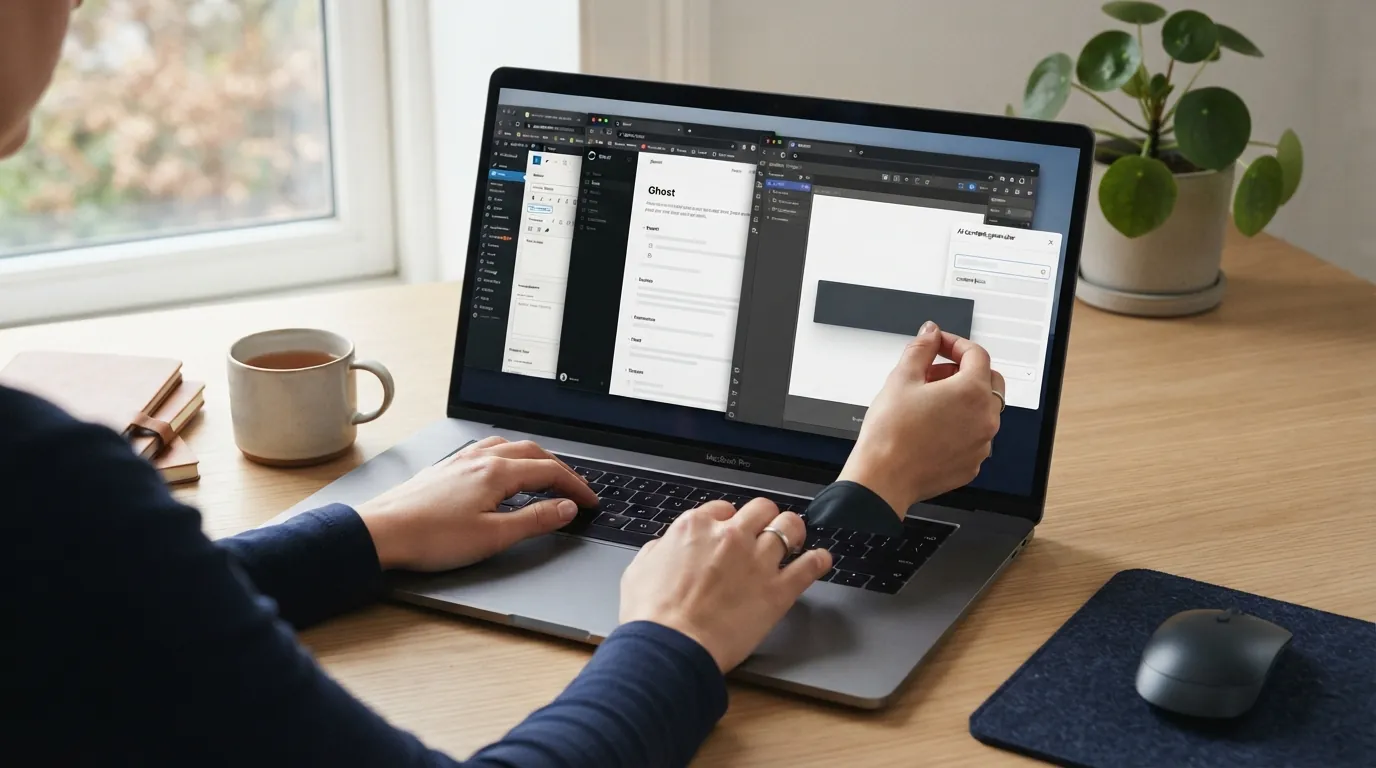
Integrating AI-generated blog content into WordPress, Ghost, or Webflow requires a clear understanding of your AI tool’s output format and each CMS’s content management approach. The most straightforward path often involves generating content already formatted. This might be HTML or Markdown. You then paste it into the CMS editor. This method works best when the AI output includes appropriate styling, keyword grounding, and image placement. It reduces manual cleanup efforts.
The optimal integration method depends on several factors. Consider the specific CMS, your agency’s existing workflow, and the content’s styling complexity. A basic blog post with standard headings and paragraphs integrates differently than one needing custom shortcodes or specific CSS classes. For agencies managing content across dozens of client sites, a system that delivers self-styled, ready-to-publish output simplifies platform-specific adjustments.
Content Export Formats and Their Uses
AI blog generators typically offer content in a few standard formats. Knowing which format works best for your client’s CMS makes integration simpler and faster.
- HTML: This is often the most direct export. When an AI tool provides full HTML, it includes text and structural elements like
<h1>,<p>,<ul>,<img>. It might also include inline styles or classes. For platforms like Webflow, which relies heavily on HTML structures within its content areas, or WordPress when using a custom HTML block, this can be a near-perfect drop-in. It maintains the intended visual layout and formatting. - Markdown: A lightweight markup language, Markdown focuses on content structure rather than precise styling. It uses simple syntax for headings, lists, bold text, and links. Ghost, for instance, is built around Markdown. WordPress’s block editor also interprets Markdown when you paste it. This format is portable and clean. It adapts easily to a CMS’s native styling without conflicting with pre-set HTML styles. It works well for content where the CMS’s stylesheet should dictate the final look.
- Plain Text: While useful for raw copy, plain text lacks any formatting or structural cues. Integrating plain text means manually adding all headings, paragraphs, lists, and links within the CMS editor. This requires the most post-generation work. It offers maximum control over styling from scratch.
Choosing the right export format for your content significantly cuts down on post-editing time. For a detailed look at how different content generation methods impact agency workflows, consider reviewing AI vs Human Content Generation for Agencies.
Integrating into WordPress
WordPress, with its various editors and theme builders, offers flexibility for content integration. Your chosen method depends on your site setup.
If you use the Block Editor (Gutenberg), you have a few options:
- Custom HTML Block: If your AI generator outputs full HTML, create a “Custom HTML” block in the editor. Paste the HTML directly into this block. WordPress renders it as is. This method retains all original styling and structure from the AI.
- Rich Text Paste: For simpler HTML or Markdown, you can often paste the content directly into a standard paragraph block. The Block Editor interprets basic Markdown (like
## Heading) and converts simple HTML into appropriate blocks. For example, a<h2>tag might become a Heading block, and<ul>a List block. - Third-Party Plugins: Plugins like “Classic Editor” or specific Markdown plugins can change how content is handled. The Classic Editor has an “HTML” view where you can paste raw HTML for direct rendering. Markdown plugins, like Markdown for WordPress, offer dedicated blocks for Markdown input.
For sites using page builders like Elementor or Divi, you’d typically look for an “HTML module” or “Text Editor” widget. Paste your AI-generated HTML into these modules. Be aware that page builders often have their own styling rules that might override or conflict with inline styles from your AI output. You might need to adjust the page builder’s element settings to achieve the desired look. For instance, Elementor’s “Advanced” tab lets you fine-tune padding and margins.
Always publish content as a draft first. This lets you review formatting, check for broken image links, and confirm all SEO elements like meta descriptions and alt text are in place before going live. For a broader perspective on integrating AI into your agency’s content process, see Automated Blog Writer Workflow for Agencies.
Integrating into Ghost
Ghost is designed for a clean, focused writing experience and natively supports Markdown. This makes it an ideal platform for integrating AI-generated content when the output is in Markdown format.
To publish content to Ghost:
- Direct Markdown Paste: Open the Ghost editor for a new post. Paste your Markdown content directly into the main content area. Ghost instantly renders the Markdown into its visual editor, showing headings, lists, and bold text as they will appear on the live site.
- Image Handling: If your AI content includes images, the Markdown will likely contain image links (
). Ghost displays these images. Confirm the image URLs are publicly accessible. If your AI tool generates local image files, you will need to upload them to Ghost’s image library and update the Markdown links manually. - Code Blocks: Ghost handles code blocks well. If your AI output includes code snippets formatted with Markdown backticks, Ghost renders them correctly within a dedicated code block.
Ghost’s minimalist approach means fewer styling conflicts compared to more feature-rich CMS platforms. The platform’s default theme styles apply automatically, creating a consistent brand look across your blog posts.
Integrating into Webflow
Webflow, a powerful design and CMS platform, offers specific ways to integrate AI-generated content, particularly for its CMS Collections.
- Rich Text Element: For blog posts, you’ll typically use a “Rich Text” element within a CMS Collection item. Paste your AI-generated HTML directly into this element. Webflow’s Rich Text element accepts and renders HTML, preserving most of its structure and basic styling.
- Styling Overrides: Webflow has a strong class-based styling system. While the HTML content will render, Webflow’s global styles or classes applied to the Rich Text element will take precedence. This is often desirable. It creates brand consistency across your Webflow site. If your AI content includes inline styles, these might be overridden by your Webflow project’s CSS. For example, a
font-size: 16px;inline style might be overridden by a classbody-copywithfont-size: 18px;. - CMS Fields: For specific pieces of content like headlines, meta descriptions, or image alt text, you’ll map these to individual text or image fields within your Webflow CMS Collection. This might require a more structured output from your AI generator or some manual splitting of the content.
The key with Webflow is to generate content that focuses on clear HTML structure, not intricate inline styling. Let Webflow’s powerful design system handle the final visual presentation.
Maintaining Brand and SEO Consistency
An AI blog generator’s value for agencies comes when it produces content that is ready for publishing and aligned with a brand. This means the content should automatically adhere to your client’s brand voice, incorporate their specific styling, and be optimized for search engines.
When evaluating AI tools, look for those that:
- Generate Self-Styled Content: An AI that learns your client’s website styling and applies it to the output saves time. You spend less time adjusting fonts, colors, and layouts post-generation. This is a major time-saver, especially across many client sites,
- Incorporate SEO Best Practices: This includes keyword integration, appropriate heading structures (H1, H2, H3), internal and external linking suggestions, and meta descriptions. An AI that understands local SEO nuances can be particularly helpful for agencies targeting specific geographic markets, like a plumbing service in Seattle or a bakery in Austin. For insights on this, refer to Using AI for Local SEO for Agencies.
- Handle Images and Multimedia: The AI should ideally suggest or integrate relevant images, either by providing URLs or placeholders, to enrich the content visually.
Achieving this level of consistency with AI content helps agencies scale their content production without sacrificing quality or brand integrity. It delivers a complete, ready-to-publish asset for your clients.
Questions People Ask
What is the best export format for AI content? HTML is generally best for platforms like Webflow and for retaining precise styling. Markdown is ideal for Ghost and offers cleaner integration with WordPress’s block editor.
Can AI-generated content break my website’s design? If the AI output includes complex or conflicting inline styles, it can sometimes interfere with a CMS’s existing design. Using an AI that generates content based on your site’s CSS or exporting in Markdown helps avoid this.
Do I need to review AI content before publishing? Always review AI-generated content. Check for accuracy, tone, brand consistency, and any formatting errors. AI tools are powerful, but human oversight helps achieve the highest quality and brand alignment.
How do AI blog generator costs compare to human writers for agencies? AI blog generators can reduce content production costs compared to human writers. This is especially true for high-volume content needs. You can explore this further in AI Blog Generator Costs for Marketing Agencies.
Sunflower Protocol writes keyword-grounded, illustrated posts that drop into WordPress, Ghost or Webflow. See it on one of your sites at https://sunflower-protocol.com.